Wednesday, 18 June 2014

[Android] iChess v3.6.1 released!

iChess v3.6.1 was released today with the following changes:

* You can now reset the Bird view and start solving afresh! (See Bird View screen - Menu - Reset). This will not affect your score


* If your puzzles PGN has a comment, then iChess will show it underneath the board.


* Better Fritz color
* Better support for foreign language PGNs
* Fixed some puzzles
* Other enhancements under the hood!

Tuesday, 27 May 2014

Whats New in Chess Book Study v2.5! [Android]

v2.5 of Chess Book Study Android app was released today! [FREE / PRO]

Chess Book Study Store!
Chessdom Chess Insider PDFs/PGNs are now available for purchase from inside the App!
Read GM Analysis and reports of the historic Candidates 2014, European Individual Chp or the Gashimov Memorial. More coming soon...
You can even copy the PDF/PGN and view them on your Computer!*
(Please upgrade Ebookdroid (Chess) app to see the extra Menu option. Else use the Quick Action menu > Store)


Annotation Editor
You can effortlessly add annotations and comments to multiples moves from a single screen!


Settings

  • Board Colors - You can choose different Board colors. What more, the board/app background changes according to the chosen color!
  • Sound - Enable/disable sound

Promote Variation
In the Notation view, tap an already selected move or touch and hold to see more options, including the Promote Variation option.

Bug fixes and Misc changes
This release also includes some bug fixes and PGN library changes.

Play Store Links
[FREE / PRO]

* The files are stored on your sdcard. (/sdcard/Android/data/com.pereira.booknboard{.paid}/files/)

Monday, 26 May 2014

Chess Book Study Tips n Tricks

Chess Book Study v2.5 was released today (May 27th, 2014).
These are some handy tips and tricks.

Swipe to load next/prev game
Once you load a game from the Games browser, you can simply swipe the board left/right to load the next/previous game!

Already in v2.1...
Swipe to flip board
Just like the Analyze This app, you can now swipe your finger down on the board to quickly turn/flip the board!

Double tap book to show/hide board
Many of you requested for a quick way to show/hide the board. Now, just tap your finger twice (doube tap) on the book to show or hide the board (and notation)

Free Chess ebooks
You can download some free (copyright free) ebooks right from within the app.
Click Menu > Open eBook > Opds browser (folder icon with a globe) > Free Chess ebooks
Once the book is downloaded, press the Back key and you should see it in the Library, or you can manually locate it in the Downloads folder.

Thursday, 17 April 2014

Follow Chess 1.0 released!! Now follow moves from multiple Chess tournaments


  Follow Chess v1.0 for Android was released today! With it, you can now watch multiple Chess tournaments in multi-board format!

Check out moves from multiple international chess tournaments.
Currently broadcasting Women's Grand Prix, 14th Bangkok Club Open, Danish National Class, Fagernes International and Dubai Open!!
Dont like the Ads? See Menu - Remove Ads to remove all Ads and go Pro! This will also unlock all features that may be added in the future!


TIP : Tap on any board in the multi-screen view to launch the offline Analysis Board.

Offline Analysis Board - Play through the moves or even enter you own moves to understand the nuances of the game!
Please note that this board will not auto-refresh if new moves are made in the actual game.
Hit the Menu - Analyze This and you get the full game (with your variations!) into Analyze This app for saving, sharing and further analysis!

TIP : Instant Engine Analysis - Double tap the board in this screen to launch the instant engine analysis with my Analyze This app!
TIP : Flip Board - Like my other Chess apps, swipe your finger down on the board to flip the board!

The app supports nearly 5300 Android devices!!! As usual, there could be issues with certain devices running on certain Android versions. If you are one of those unlucky ones, please send me an email at pereiraasim@gmail.com and I would be able to fix it. Leaving a review on the Play Store, does not give me enough information to fix the issue; so it will remain as it is! Instead, pls mail me!

Even if there is no issue, just mail me with your feedback. I like to listen to em!

DOWNLOAD (PLAY STORE)

Future Features
- Games from previous rounds
- Pairing & Schedule
- Results
...till then, happy viewing!

Thursday, 3 April 2014

Chess Book Study for iPad - Help


1. How do I copy my personal ebooks?
NEW in v1.2 - Now with v1.2, you no longer need to connect your iPad to iTunes to copy the ebooks. You can simply open your Chess PDFs via Dropbox, Drive, Email or other supported Apps! (see note below)

Connect your iPad to iTunes on your Mac or PC. (You can also connect it on Linux.) Then locate the Chess Book Study App's Documents folder. Copy your book to the Documents folder and you are done! (Disconnect your iPad and the book should be visible)
Please note that only ebooks/magazines in PDF format are supported.

2. What features does the iOS app currently support?
Add/View Bookmarks - You can add multiple bookmarks or jump to bookmarked page.
Brightness - Change screen brightness (useful when reading in low light)
Show/Hide board - You can view the book in full screen by hiding the board
Board Colors - Choose a different board color
New Board
Following features are in the Pro version only:
Position Setup [PRO] - Set up a new board position
Flip board [PRO]

3. Tip to navigate the book - tap bottom for next page, tap top for previous page
You can swipe through the pages of the books. Additionally, you can tap the bottom of the book to load next page. Tap the top of the book to view previous page.

Got an issue? Please email me at pereiraasim@gmail.com

Ex: How to open PDF from Dropbox
In Dropbox , tap the "Share" icon which has a upward pointing arrow. It will show a Popup.
Then choose Open In... and Chess Book Study app should be listed.

Thursday, 20 March 2014

Should Anand win the Candidates?


A smiling Anand at the Candidates 2014
(pic by @NastiaKarlovich)

Note, the question is no longer, "Will Anand win the Candidates?" since this is now put to rest after the first 6 rounds. But my question is; should he?

Today is a rest day for the players and me too (after a BIG Analyze This app release). So I thought it was a good day to rest a bit, take a break from programming and ponder over this Q.

"Should Anand win the Candidates?!".
Sounds dubious, doesn't it? After all, which player would not want to win a tournament and challenge Magnus Carlsen himself!? And which fan would not want his favorite star to win the Candidates? But should he?

Before I start getting threat calls from Chennai, and Vishy himself 'unfriends' me on FB and stops following on Twitter, let me make it clear. I am a big Anand-fan and would like to see him play forever!

There is no doubt about his stature. He is a legend who has single-handedly carried the expectations of a million Indians Chess fans (and one of the reason I quit my full-time job and started working on my Chess Apps and eBooks). He has won everything there was worth winning.

And the way he is currently playing, is a treat to watch. Then, why this question?

Lets take 3 likely scenarios when the Candidates tourney ends:

Scenario 1 : Anand plays badly here-after (r6) and ends up somewhere in the middle of the standing.
This will be obviously bad for him and his fans, especially after a dream start like this. We fans and probably Anand himself would not have imagined that he would be in sole lead after 6 rounds!
This will be quite disastrous.

Scenario 2 : Anand wins the Candidates and the right to challenge Carlsen (again!). Many Chess fans would think this would be the easiest pairing for Carlsen and a lop-sided match. I am sure even Carlsen, would probably stop practicing on his Play Magnus app and stop drinking Orange Juice. He might even take up additional modelling assignments or sign-up a movie! ("Board Wars - Return of the Tiger" starring Liv Tyler and some south Indian dude).

But would Anand himself like to play Carlsen again? Carlsen is strong, but not unbeatable. And he might even take some inspiration from the Rocky movies. According to reports, Anand was initially planning to skip the Candidates (probably because he wanted a nice break and wasn't really thinking of matching Carlsen again). Would the Chess-world (barring Indian fans), be excited again to watch the match? (well I bet, on any given day a Carlsen-Anand match would have more viewers than a Carlsen-XYZ match)
Anand will now need to spend months in intense preparation if he has to beat Carlsen.

If Anand defeats Carlsen, does it make Anand more greater than he already is? It would be another feather in his overcrowded hat and an impossible comeback! But at some point, the new generation has to overtake the older while the legends fade, and that is perfectly natural!
If Anand loses again, the cycle repeats!?

Scenario 3 : Anand narrowly misses the ticket and finishes 2nd in the Candidates. Probably Aronian beats him on tiebreaks.
Fans will definitely be sympathetic towards Anand and be happy that against all odds, he played a superb tournament and the "tiger is back". No hard feelings. Even Anand would feel good about his performance.
Anand goes on a nice extended holiday with his family, feeling content that he performed his best and came very close to winning it. He gains a dozen rating points and is having a good time, till his next tournament. Less pressure!

What do you think? Should Anand win the Candidates?

Wednesday, 19 March 2014

Analyze This - Tips and Tricks (new in v3.0)

Many features have been added in v3.0. Here are some Tips and tricks.

NOTE : When in doubt, press the Menu key (indicated by 3 vertical dots on the Top right/left of the device. On some devices, the Menu can be accessed with a physical button)!

Delete game from PGN file

Added a game to your PGN file by mistake and wish to delete it? Touch and Hold the game and you will see the Delete icon on the top right. Press the icon to delete the game. (Note : the game will be permanently deleted. Always create a backup of your important PGN files!)

Play against Mobile / Engine shootout (PRO Only)

The one important thing that Analyze This lacked was the ability for the engines to play against you or against other engine. Not anymore! Say you are practicing Endgames or just want to understand why the GM resigned in a given position; you can test your skills against the machine!
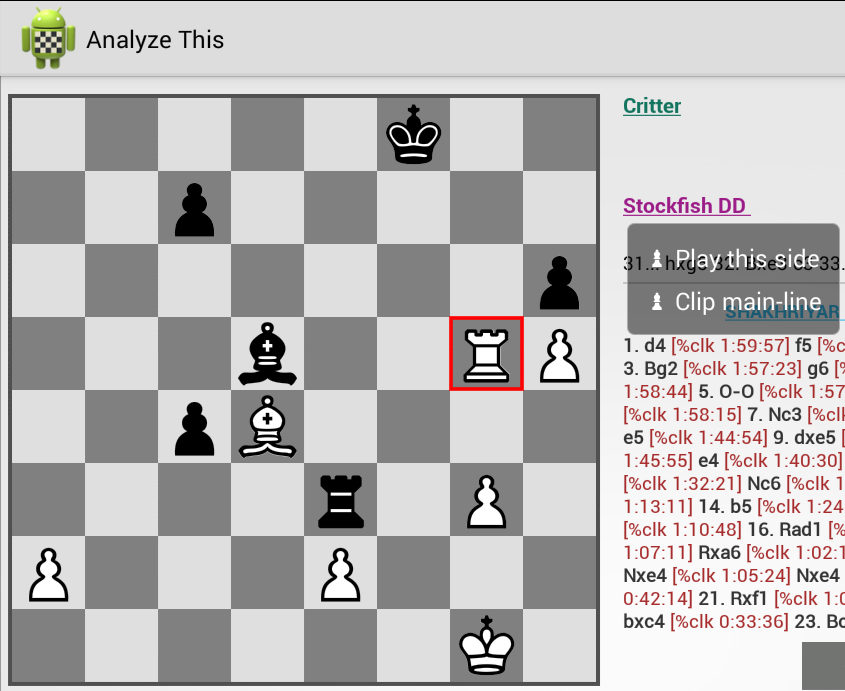
Tap the Engine name (hyperlink) and choose 'Play this side' and the engine will automatically make moves for that side, while you play the other. If you choose 'Play this side' again, then the engine will make moves for both sides and finish the game. This way, you could use any combination of engines!! (Psst: I tried to play the Shak vs Svidler Candidates game where Svidler resigned after the awesome Rg5. I played with the White pieces, but I still could only draw against the Engine!! Envy those Super GMs. Try it!)

Engine output to Notation


You can copy the engine output to the notation! There are two ways to do this:
* Clip main-line - Tap the engine name to see the option. This will copy the engine's main line to the notation
* Touch and hold the engine line - Alternately, you can touch and hold any of the variation in the engine window and that variation will be copied to the notation.

Annotation editor

Analyze This now has the option to annotate your games. You can use the Annotation Editor to annotate multiple moves in one sitting! Just tap on the move that you wish to annotate and choose the appropriate symbols. Add a comment if you like and press 'Apply Comment'.

Quick Annotation Palette

What if you only wish to quickly add some symbols to the game without having to load the complete Annotation Editor!? Simply double tap on any empty square on the board and you will see the above Annotate Palette. Then choose any symbol and it will be added to the move. Note the palette will auto close in 5s.

Promote variation

Touch and hold the move in the Notation window to see the option to "Promote variation". This will make the sub-variation into the main line.

Auto-replay game (PRO Only)

A good way to go through master games is to play through them quickly, as many times as possible and as many games as possible. Analyze This now allows you to do that. Just press the green button and the game will auto-replay every few seconds. Sit back and enjoy the game!

Variation chooser

When you are reading a annotated game, its not always easy to find the sub variation and jump to it. Now, Analyze This will pop up the available variations and you can tap any of the move to jump to that variation. Bonus Tip : At the end of the sub-variation, you can continue to hit the right arrow and you will automatically jump back to the main-line!

Player lookup via Wikipedia


Note the hyperlinks on the Play names in the first picture. You can lookup the Player profiles on Wikipedia. Handy if you are browsing through some international games and wish to lookup on some favorite players or somebody unknown.

Swipe to change games

When you load a game from the games browser, you can swipe from right-to-left on the board to load the next game. Similarly, swipe left-to-right to load the previous game. (Note : Every time you launch the app, the app may show you the Games list the first time. Then subsequently, swiping will load the game)

Arrows and Highlights

Sharing Board as image with Analyze This just got better! You can now highlight squares or draw arrows. Simply touch any square to highlight it. Swipe your finger across to draw the arrow! (Thx Carlos). Coordinates are automatically added to the image, so that your readers are not left wondering which side moves up or down!

Quick access to recent PGN files

Like me, if you access multiple PGN files from different folders (Download, Dropbox folder etc), then Analyze This v3.0 has a handy little feature. It shows your last accessed PGN files at the top (in light gray) irrespective of which folder you are current in. Simply tap the file to load it!

Different ways to Paste in Analyze This

Analyze This has a single "Paste" option, but it is smart enough to know what you are actually pasting!
So you can paste a complete PGN or only the FEN string or only the moves, and Analyze This accepts them all!

Say you have received a PGN in your email or have it on a website. 
You can paste the complete PGN.
Ex:
[Event "New Jersey State Open Champion"]
[Site "?"]
[Date "1957.??.??"]
[Round "7"]
[White "Fischer, R."]
[Black "Sherwin, J."]
[Result "1-0"]
[ECO "B30"]
[WhiteElo ""]
[BlackElo ""]
[PlyCount "65"]
[EventDate "1957.??.??"]

1. e4 c5 2. Nf3 e6 3. d3 Nc6 4. g3 Nf6 5. Bg2 Be7 6. O-O O-O 7. Nbd2 Rb8 8. Re1
d6 9. c3 b6 10. d4 Qc7 11. e5 Nd5 12. exd6 Bxd6 13. Ne4 c4 14. Nxd6 Qxd6 15.
Ng5 Nce7 16. Qc2 Ng6 17. h4 Nf6 18. Nxh7 Nxh7 19. h5 Nh4 20. Bf4 Qd8 21. gxh4
Rb7 22. h6 Qxh4 23. hxg7 Kxg7 24. Re4 Qh5 25. Re3 f5 26. Rh3 Qe8 27. Be5+ Nf6
28. Qd2 Kf7 29. Qg5 Qe7 30. Bxf6 Qxf6 31. Rh7+ Ke8 32. Qxf6 Rxh7 33. Bc6+ 1-0

Or you can paste only the FEN string (frequently available in diagrams on the ChessCafe website). Ex:
 [FEN "8/4pkPp/7B/3K4/8/8/8/8 w - - 0 1"] 
or
"8/4pkPp/7B/3K4/8/8/8/8 w - - 0 1"

or you can paste only the moves from a game (from starting position)

1. e4 c5 2. Nf3 e6 3. d3 Nc6 4. g3 Nf6 5. Bg2

Now isn't that one smart app!?

=======================================

//The following features were already part of v2.0.x

PGN delete and share

Now delete or share the PGN file with your coach right from within the app!
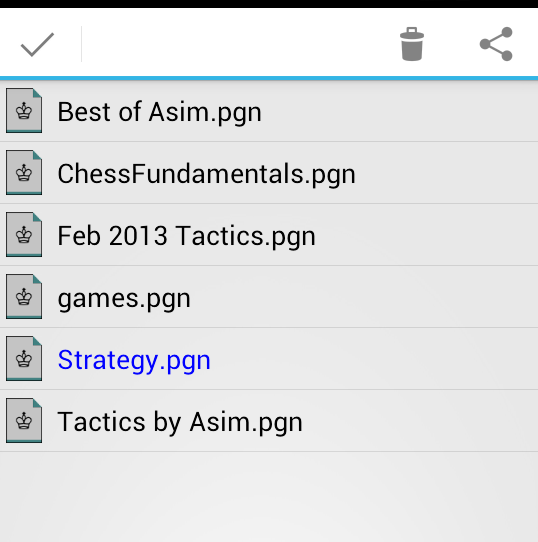
In the File Browser (via Open PGN), touch and hold the pgn file that you are interested to delete or share. You should see options to the top right as shown below.
Then you can Delete the file or Share it via Email, Dropbox, Google docs etc

Create new PGN


While saving a game, you are asked to Choose a File. You can even create a new PGN from within the app!
Press the physical menu key and choose "Create New PGN". If your device does not come with physical menu key, then its even easier. You can simply choose the "Create New PGN" option from the drop down located at the top right of your screen (indicated with 3 vertical dots)


Long press notation/moves for more options


You can select a move from the move/notation window. Then touch and hold it and a popup should appear with more options.
"Delete this move" - Delete the currently selected move including itself. This can be even used to delete a complete variation by selecting the first move from the variation and then choosing "Delete this move"


Swipe to turn board


Wish to turn/flip the board? Now thats easy. Simply swipe your finger down the board as shown below! Turning the board was never so easy!


Tap engine analysis


Now you don't have to manually enter moves. If you like the engine's suggestions, then Tap on the engine move in the list and it will be played on the board!
For ex. in the image below, once you tap the variation, the first move Ra3 will be played on the board.
You can continue to tap to make subsequent moves

Tilt to move

Give your fingers some rest. Simply tilt your device left/right to take back or move forward through the notation! I use this feature, when I am relaxing on the couch and wish to play through some recent master games. What best is that I can even use it while moving around and move back/forth through the moves with a single hand!
Note: Tilt = move the left/right vertical edge of your device such that one edge of the device is up while other edge is down.